Friday, May 13, 2016

How to Get back Deleted Viber Messages from iPhone without Backup

Viber is one of the most popular instant chat apps now. However, almost every single thing that people like and rely on will become a burden in some ways. If you use Viber to chat with people, no matter your friends or business partner, you’d better care for your data safety. Backup your Viber message with iTunes or iCloud if you use iPhone/iPad. Or you have to move on and learn how to recover Viber messages from iPhone without backup.  


Under this condition, we have to ask help from professional recovery software. Jihosoft iPhone Data Recovery is no doubt one of the best. You can view the recovered messages for free with this tool.

 iPhone Recovery Download


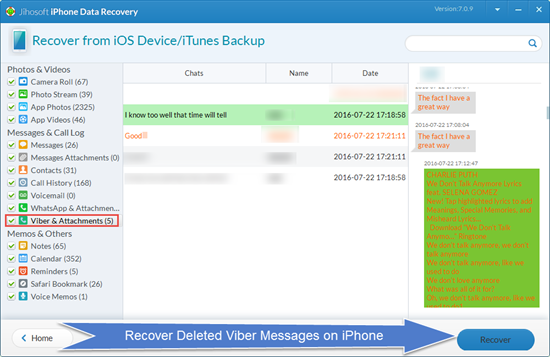
1. Install Jihosoft iPhone Data Recovery.
2. Run the program.
3. Connect your iPhone/iPad to computer via a USB cable.
4. Click “Scan”.
5. Click “Viber” to view the messages in conversations after the scanning is done.


Video Guide:

To maximize the recovery possibility, please turn on "Airplane Mode" on your device and use this program as soon as possible. You can retrieve the deleted Viber message as long as it hasn't been overwritten.

Related: Retrieve deleted WhatsApp messages on iPhone

Tuesday, April 26, 2016

doubleTwist Sync Review -Version 4.0.4 - Sync iTunes Media Data with Android

doubleTwist Sync is a small but useful utility when it comes to media data transfer between mobile phone and computer. For usefulness, it can import Android media files to computer and sync musics and videos between Android device and iTunes/Windows Media Player directly. For smallness, it is shown as a small window on the desk and nearly invisible in notification bar. 


doubleTwist Sync makes a good balance between diversity and flexibility. It provides users with two options for PC data - iTunes and Windows Media Player, but you can also disable any one to avoid potential mess.  
Notification bar > right-click > Preferences
1. Connect a device to computer  
doubleTwist provides USB connection and Wi-Fi connection, the later of which needs mobile app installed in the device. Here we connect a Samsung S6 to a PC with a USB cable. A window will pop up after connection. There will have 4 tabs.
doubleTwist device
2. Device tab
Beside the brief storage analysis column are four setting options, the first two of which can explain themselves through the titles. Covert music or video for this device means that this program will transcode the files to readable formats if they are originally not for the connected device. Enable these two options may cause transfer failure for some media files which the program is unable to convert the formats. If you think your device can play those files and want to sync them anyway, just disable the options.

3. Muisc/Videos/Photos tab
It is quite simple and similar on these three tabs. You can set which music or videos to sync if not all of them and customize the location for importing music, videos and photos to PC.  
doubleTwist music
4. Sync now
When you set all the options right, click Sync now. The program will report the result when it is done. You can check your phone player while comparing iTunes or Windows Media Player. All the information, like playlist, album, artist, genre, should be exactly the same.

Note: It is kind of deceptive when people see Sync now button under every tab. Do remember to untick the options if you don’t need them before click the button.

One thing that doubleTwist Sync can not do is transfer pictures from computer to Android device. Maybe it is just too easy. We can do it through drag-and-drop as long as the USB connection works normally. Or you can also try iTunes to Android if you want to transfer music, vidoes and photos from iTunes backup to Android phone or tablet. 


Friday, March 18, 2016

[WhatsApp Recovery]Retrieve Deleted WhatsApp Messages on iPhone


With the social app WhatsApp, it is quite convenient for iPhone users to keep contact with family, friends, colleagues or commercial partners. Loving chatting on WhatsApp, you might go crazy When accidentally deleting the messages on WhatApp. You may seek for any approach to retrieve deleted WhatsApp messages from iPhone. Luckly, there is a powerful WhatsApp Recovery tool, iPhone Data Recovery, Which allows you to recover WhatsApp messages, WhatsApp photos and WhatsApp Videos.

Jihosoft iPhone Data Recovery is a useful utility which makes it easier for iPhone users to get back deleted or lost data, such as WhatsApp Chat History, Text Messages, Photos, Videos, Notes, Viber Messages. No matter what devices you runs WhatsApp on, just download it to recover deleted WhatsApp chats from iPhone 6s plus, 6s, 6 plus, 6, 5s, 5c, 5, 4s, 4 and iPad.

Video Guide:


Step guide:
1. Launch iPhone WhatsApp Recovery tool and connect your iPhone to PC or Mac.
2. Click "Start Scan", and the program will  scan the device for lost WhatsApp chats.
3. After the scanning, click "WhatsApp" to preview the lost messages before recovery.
4. Check the conversations you want and click "Recover" to save them on your computer.

Other options: 
Option 1. From iTunes Backup
Supposing that you've backed up your iDevice with iTunes recently, you can also choose the second mode "Recover from iTunes Backup File" to check if there are the deleted WhatsApp chats you need in iTunes. Then, you can choose to resore the entire data from iTunes backup including the WhatsApp data.

Option 2. From WhatsApp Backup in iCloud:
WhatsApp itself features a iCloud backup, which allows iPhone or ipad users to regularly back up WhatsApp data via iCloud. If you enabled the feature in WhatsApp, you can follow these steps to restore from WhatsApp backup in iCloud.
1.Navigate to WhatsApp "Settings" > "Chats" > "Chat Backup"  on your device to ensure that an iCloud backup exists. (Pay attention to the "Last Backup" time to guess whether the deleted chats included in the backup or not.)
2. Delete and reinstall the app searching from the App Store on iPhone.
3. After verifying your phone number, follow the on-screen prompts to restore your chat history.

Monday, February 15, 2016

How to Recover Deleted Contacts on iPhone

One of the scariest things that might drive you crazy is losing Contacts when you try to upgrade, sync, restore your iPhone. However, things have become easy with iCloud. While you’re old school, you’ll find iTunes to be a good solution even today. As long as you’ve got a backup of your contacts somewhere, you can restore from it on your iPhone and salvage the deleted or lost Contacts easily. Even if you don't have one, some iPhone contact recovery software like Jihosoft iPhone Data Recovery will help.
Recover Deleted Contacts via iTunes Backup:
Chances are, you've backed up your device with iTunes before you lost iPhone contacts. If this is the case, you’re lucky.To restore deleted contacts from iTunes backup, all you do is as follow:
  1. Connect your iPhone to the PC/Mac and open iTunes. 
  2. Click on iPhone icon, bring up the Summary and check the date of "Latest Backup". 
  3. Select "Restore Backup" – this will replace everything on your iPhone with data from the backup.
Restore Deleted Contacts from iCloud:
Of course, you may not have iTunes backups before. If you have enabled iCloud Contacts sync, in all probability, the lost contact should be still on your iCloud account. To check if this is true:
  • Login to https://www.icloud.com with your Apple ID and password.
  • Click on Contacts.
  • Search your contacts to check if the deleted/lost contacts (from your iPhone) are still visible here.

If there they are, go to iPhone → "Setting" → "iCloud" and (if it turned off) turn on "Contacts" switch → tap "Merge". Later, iCloud will merge all contacts to your iPhone and the deleted ones should be back, too!
Recover Deleted Contacts from iPhone via Jihosoft iPhone Data Recovery(with or without Backup):
Jihosoft iPhone Data Recovery software can help to recover everything from your iPhone 6s, 6, 5s, 5, 5c, 4s, 4. No matter how you lost iPhone files and what you’ve lost, you can get them back by these two iPhone Recovery modes. "Recover contacts from iPhone directly" and "Recover contacts from iTunes backup".
Video Guide:

Step 1: Download & launch the software and connect your iDevice to PC.
Step 2: Scan contacts from your iPhone or iTunes backup(the second mode).
Step 3: Preview and recover deleted contacts from iPhone.


More tutorials please read on :

Monday, January 18, 2016

How to Recover Deleted Photos from iPhone

In daily life, tons of wonderful photos are taken using iPhone; However, you may delete or lose photos for various reasons. Failure of iOS upgrading or jailbreaking may cause lost all photos stored on your iPhone; Restoring your iDevice to factory setting or the typical case—accidental deletion does the same. Then, how to recover deleted pictures from iPhone 6s, 6, 5s, 5c, 4s or all apple tablets?

Here are several easy ways to get them back:
  1. If you iPhone or iPad is running iOS 8 or later, check the “Recently Deleted” Album, which is built in Photos App to store and keeps the deleted images for no more than 30 days.
  2. If you have set up the iCloud Sync to upload photos before deletion, you can login to iCloud.com, click on Photos icon to check if some or all of the pics already exist in your iCloud account.
  3. If you have recently backed up the entire data (including photos) of your iDevice, restore your iPhone from an iCloud or iTunes backup.
  4. What if You don't have photos backup in iCloud? Don't worry! You can try Jihosoft iPhone Data Recovery, which can recover deleted or lost photos from iPhone and iTunes Backup easily.
Just follow these steps or the video guide:


Step 1: Download & launch the software and connect your device to PC
  • Free Download: Jihosoft iPhone Data Recovery
  • If your device got lost or badly damaged, you can switch to the second mode to get back photos from iTunes backup file.
Step 2: Start scan photos from iDevice or iTunes backup
  • It will take few minutes to find the deleted image.
  • Just wait for it to finish the scanning.
Step 3: Select camera roll, photo stream or app photos to recover pics you want.
  • All the photos selected will be exported to your computer in folders.
More info:
If your iPhone is broken or dead, this page will help you:
How to Recover Photos from Broken/Dead iPhone

Wednesday, January 6, 2016

iPhone Call History Recovery: How to Retrieve Call Logs on iPhone

Do you have the habit of deleting call history regularly on iPhone? Because call logs, containing incoming & outgoing call number, date and time, are likely to reveal your call information to other people. However, in some specific situations you may need to recover the deleted call history urgently, especially when the missed calls from potential customers are deleted or cell-phone records are used as proof at court. Obviously, the situation may drive you crazy, right?

Don't be panic! In fact, there are some ways to get back deleted call history on iPhone. First, you need a iPhone Call History Recovery Software. Here, Jihosoft iPhone Data Recovery is recommended to retrieve deleted call history on iPhone 6s, 6, 5s, 5c, 5, 4s. With the help of it, you can preview the deleted call history in details for free.


free download iphone data recovery softwarefree download iphone data recovery tool

Video guide:
Option 1: Recover Deleted Call History from iPhone Itself Directly
Step 1: Run the App and connect your iPhone to the computer.
Step 2: Start to scan your iPhone for deleted call history on it.
Step 3: After the scanning, preview the details & recover call logs from iPhone.

Option 2: Retrieve Call Logs from the Latest  iTunes Backup File
Step 1: Choose the iTunes backup recovery mode and select the latest backup file.
Step 2: Scan the iTunes backup file and wait a moment to finish it.
Step 3: Navigate to the Call History, preview and  recover the deleted call history you need.

Tuesday, December 8, 2015

How to Retrieve Deleted Text Messages on iPhone 7 (plus)

Mistakenly deleting or losing Text Messages on iPhone happens from time to time in our daily life. It is quite difficult but possible to recover deleted SMS messages on iPhone. If you have backuped iPhone data on iTunes or iCloud, you can restore from that. Otherwise, you will need to use third apps to retrieve deleted Text Messages on iPhone.

Method 1: Restore deleted iPhone texts from iTunes

This works only if you automatically back up text messages before.
1. Disable automatic syncing in iTunes to prevent the program from automatically synching Texts with your iPhone: Run iTunes > Edit > Preferences > Devices, then check the box next to the option stating, "Prevent iPods, iPhones, and iPads from syncing automatically."

Note: If you do not disable automatic syncing, your iPhone and iTunes will begin the syncing process as soon as you connect the phone to your computer. If this happens, your old SMS on iTunes backup will be never restored forever.
2. Connect your iPhone to the PC with which you sync it. iTunes should pop itself up (if not, open it up manually). You should see your iPhone icon in top right hand corner. Select it. Now choose 'Restore backup' of the latest one you want.

3. All the data you previously backed up will now replace the data on your phone. It will take a few minutes. As long as you haven't backed up subsequent to deleting those text messages, they should now appear in the normal messaging list on your phone handset.

Method 2: Get back SMS messages from iCloud backup

1. Erase your iPhone: Go to iPhone > Settings > General. From there, choose Reset and Erase All Content and Settings.

Note: This will erase all the content on your iPhone. It will be replaced by the backup version stored in the iCloud. Any data saved on your iPhone since your last backup will be lost. So please make sure you have the latest and complete iCloud backup when you do that.

2. After erasing your iPhone, the device should prompt you to either set it up as a new phone or to restore it from a previous backup. At this screen, select "Restore from iCloud Backup."
Note: This will only work if you have previously backed up your iPhone using the iCloud.

3. Allow the content to download onto your iPhone. Your iPhone will restart itself and the backup data will be restored to your phone from the iCloud. This could take several minutes to complete.

Method 3: Retrieve deleted Text Messages with iPhone SMS Recovery app

If you have no backup , you will need to use a third-party software to recover deleted text messages from iPhone directly. There are Various iPhone SMS Recovery software over the Internet. You have to pay a lot to retrieve the lost messages, however. Here we found a relatively cheap but useful one named Jihosoft Mobile Recovery for iOS and have a true test of iPhone SMS Recovery.

free download iphone data recovery softwarefree download iphone data recovery tool

1. Download & launch the app on PC and connect your iPhone to it.
2. Click on the button to Start Scan of deleted Text Messages, Contacts, Photos, WhatsApp and so on.
3. After it finished scanning, navigate to Messages to preview & recover the deleted messages you need.

Video Guide: